
Find your way around
The sidebar, the Overview and search.
The sidebar
The sidebar on the left shows all the pages in your project.
| Section | Pages |
|---|---|
| Project | Overview, Roadmap, Deliverables, Worksheets |
| Resources | Assets, Project Details, Meetings |
These items are at the bottom of the sidebar:
- Help sends a message to the Growth team. Refer to Get help.
- Your name opens a menu with Settings, Take the tour and Log out.
To make more space on the page, select Hide the panel or press [. To show the sidebar again, select Show the panel or press [ again.
Cards in the sidebar
One or two cards can show above Help:
- Getting started shows until you do the tour or skip it. Select Take the tour to see the pages one by one. Select Do it later to hide the card until your next sign-in.
- Book time with your Growth lead shows only if Growth added it to your project. Select Book a meeting to select a time. Select Dismiss to hide the card in this browser.
The Overview
The Overview is the first page that you see. It shows the project status, the items that wait for you and the work for this week.
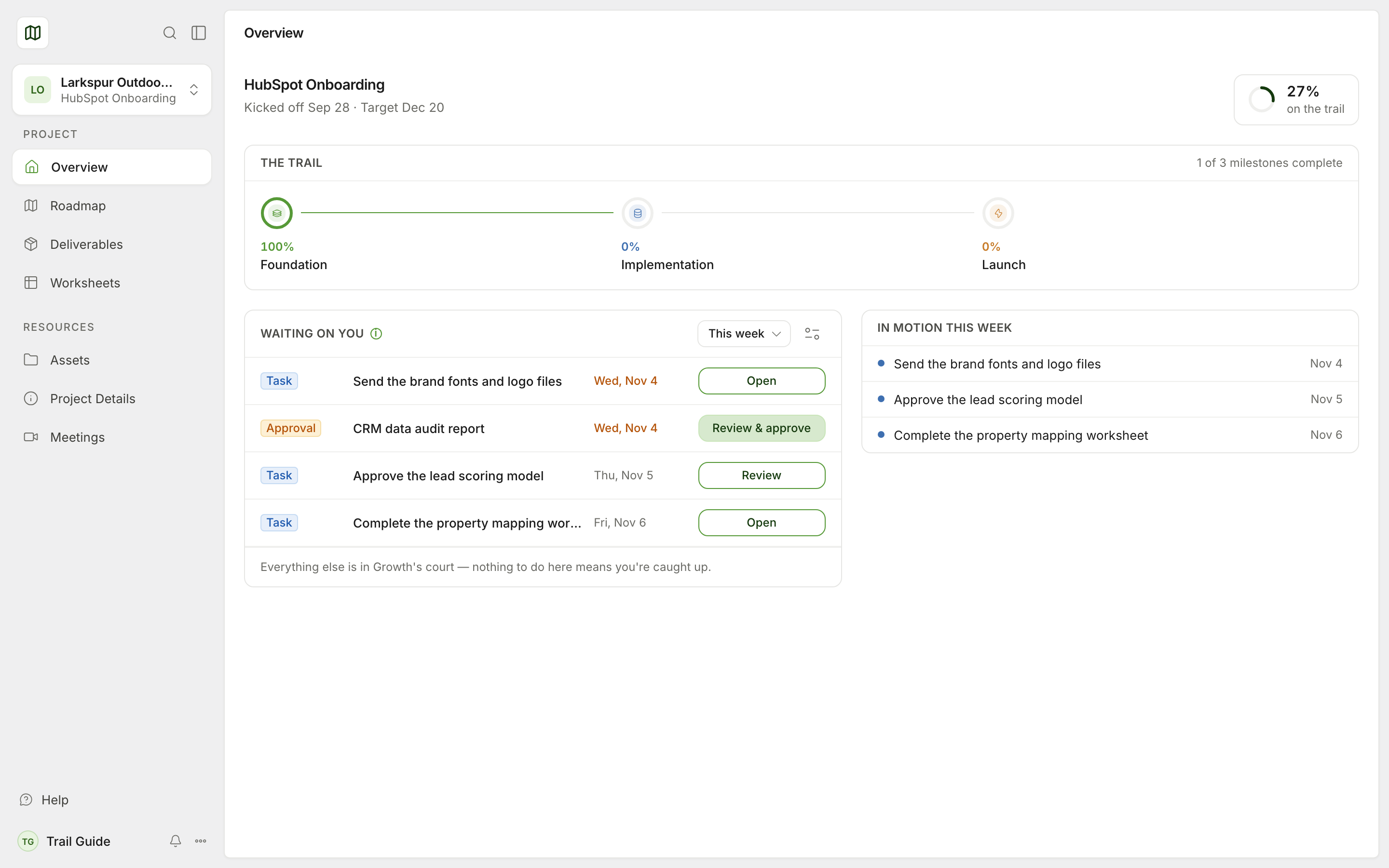
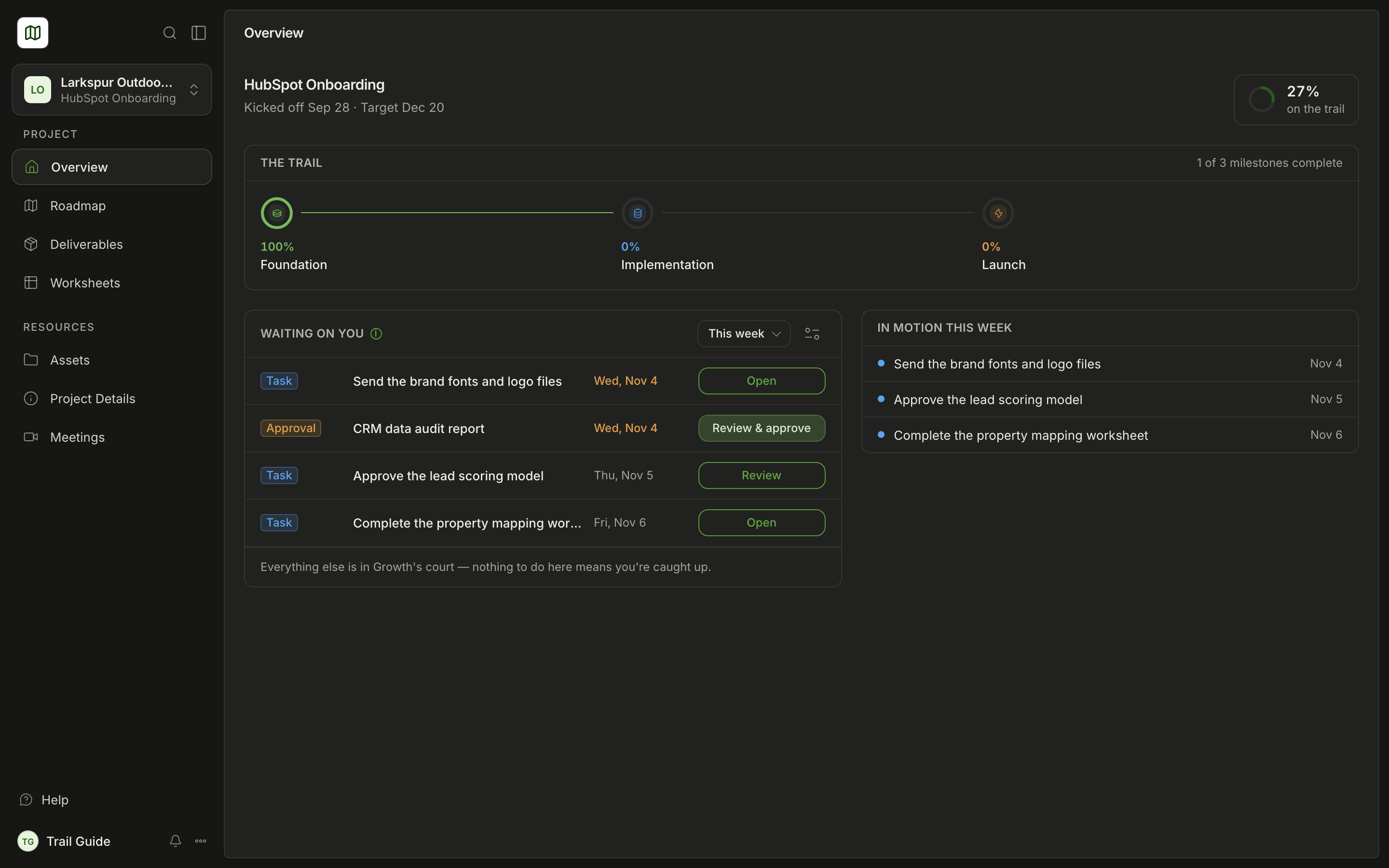
The top of the page shows the project name, the start date and the target date, if there is one. It also shows how much of the project is complete, on the trail.
The trail
This card shows all the milestones in sequence, with the progress of each milestone. The card header shows a count, for example "2 of 5 milestones complete".
Waiting on you
This card shows the tasks that you must examine and the deliverables that you must approve. A late item stays on the card until it is complete.
- Use the date menu to show This week, Next week or All time.
- Use Filters to show only approvals or only tasks. You can also sort the items by due date or by type.
- Each row has one button: Review & approve for an approval, and Review or Open for a task.
When this card is empty, you have no open items. All other work is for Growth to do.
Next meeting
This card shows your next call with Growth, if there is one.
In motion this week
This card shows all the open tasks that are due this week, for Growth and for you. The task that is due first is at the top.
Search
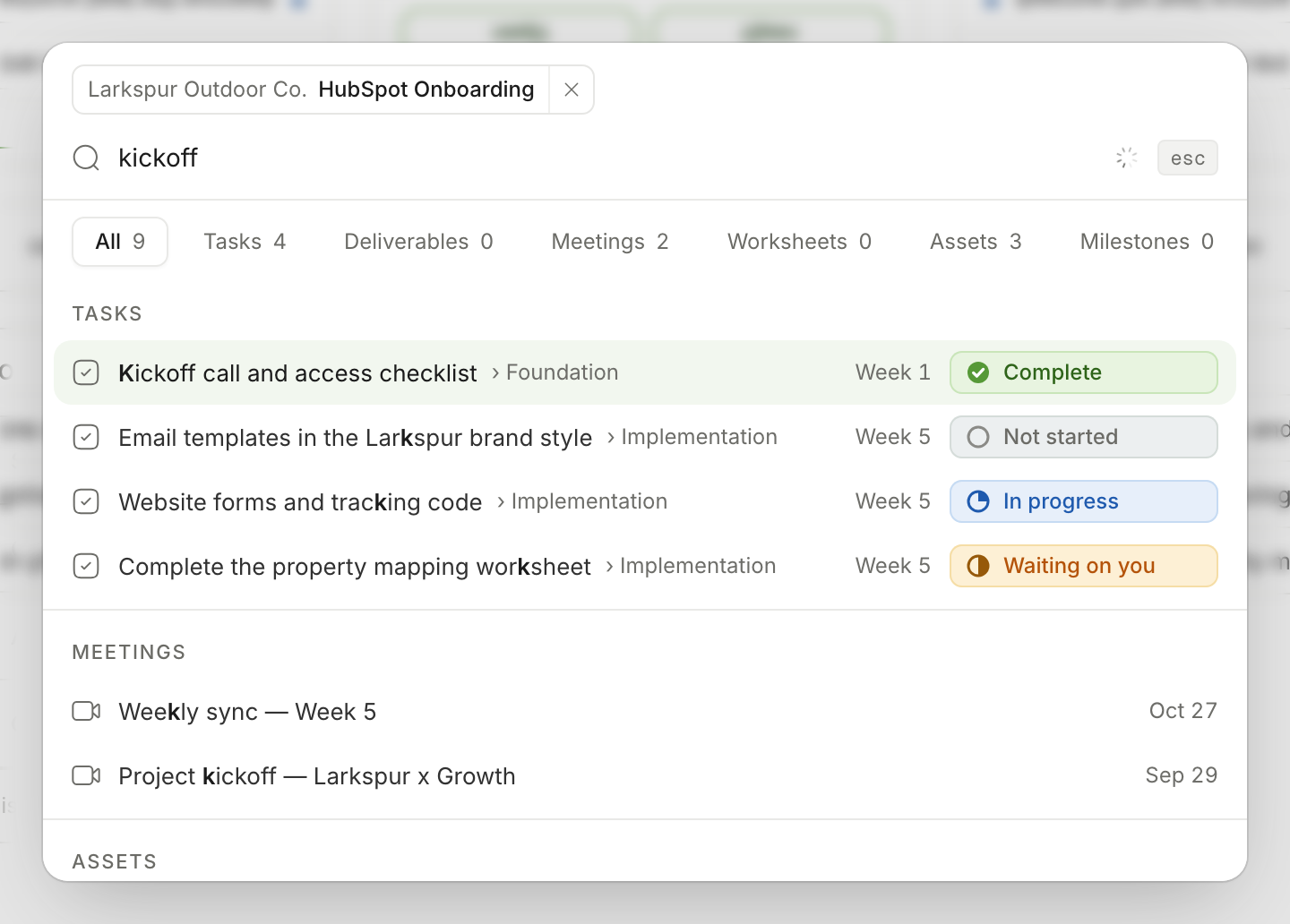
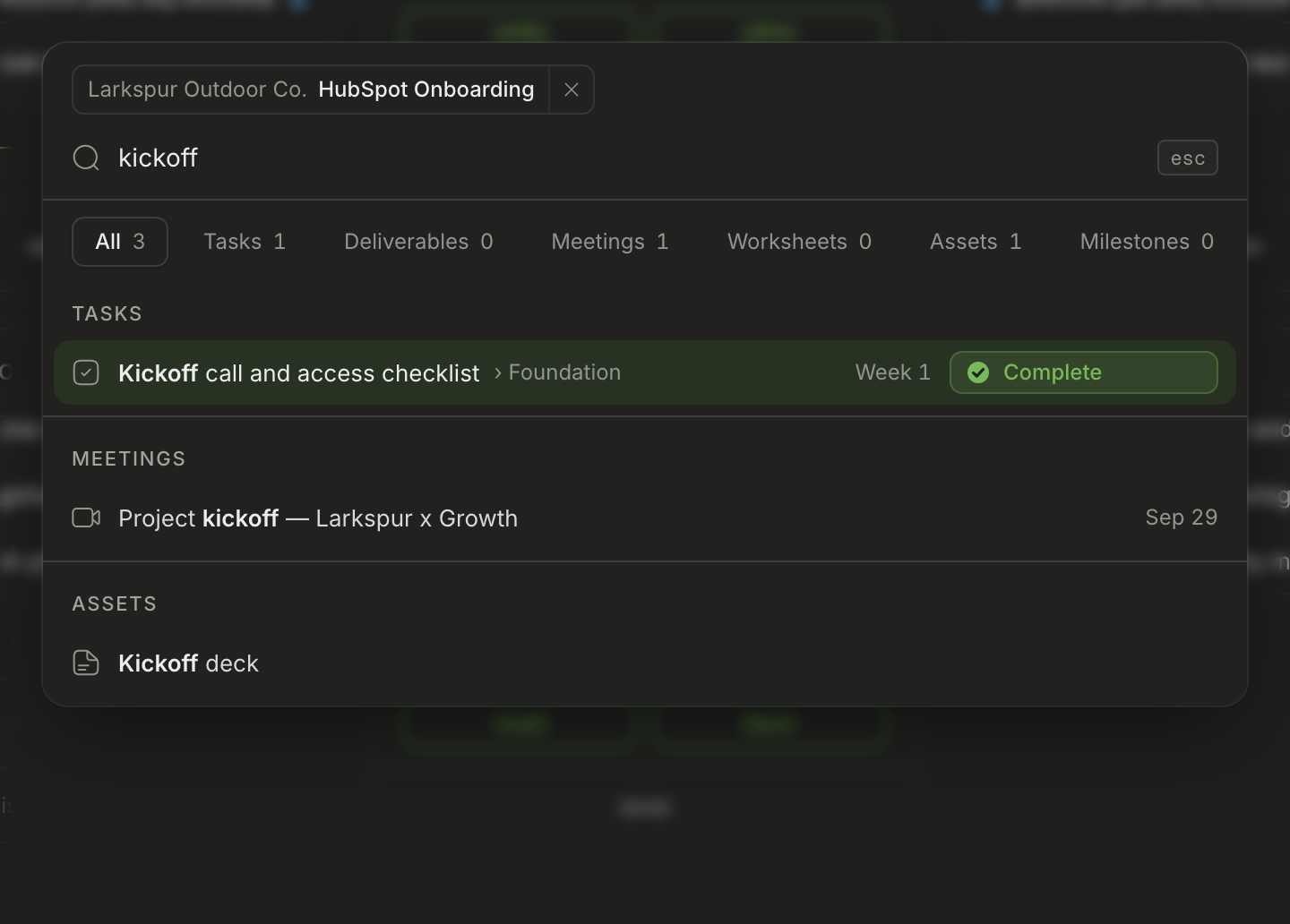
Select Search at the top of the sidebar. You can also press ⌘ K on a Mac, or Ctrl K on Windows. Type a word to find pages, tasks, meetings and worksheets in your project.
Take the tour again
Open the menu below your name. Then select Take the tour.
Was this page helpful?