
Your roadmap and tasks
Milestones, tasks, statuses and the changes that you can make.
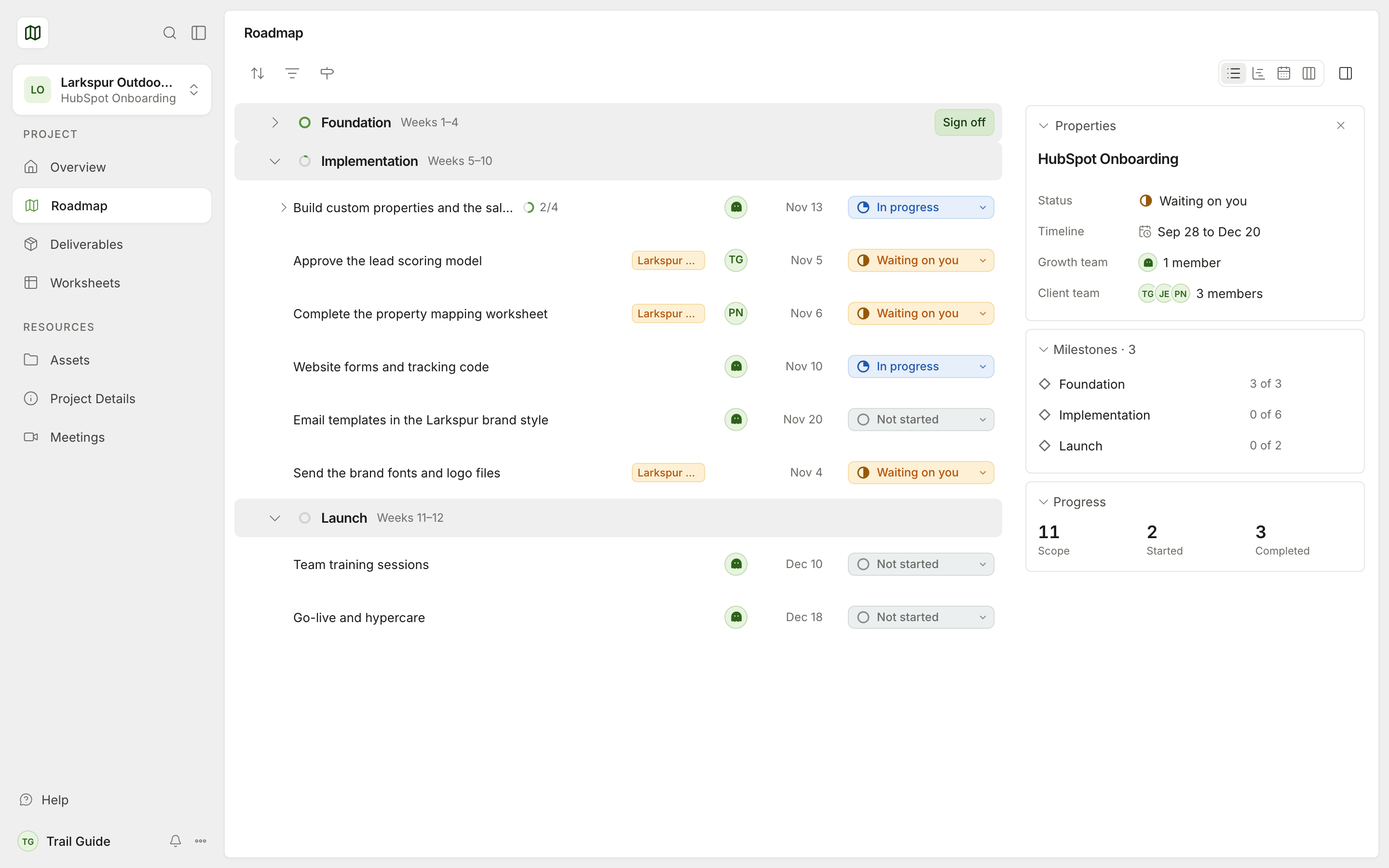
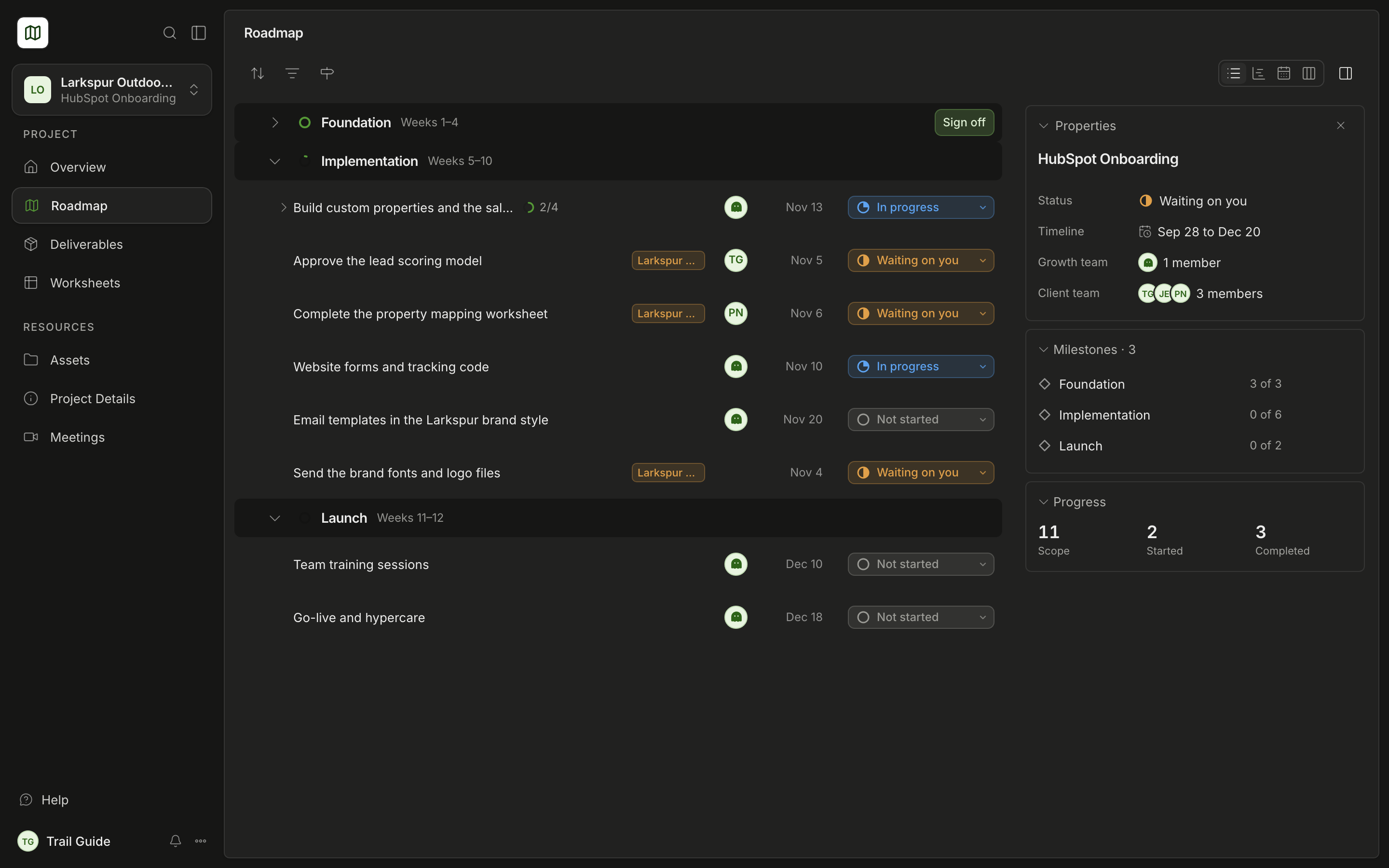
The Roadmap is the plan for your project. It shows all the milestones and the tasks in each milestone. For each task, it shows the owner and the due date. Growth updates the Roadmap when the work changes.
Milestones
The Roadmap shows the tasks in groups, one group for each milestone. Each milestone has a ring that shows its progress.
- Select the arrow next to a milestone to close or open it.
- Select the title of a milestone to see its details on the right. The details show the Status, Owner, Target date, Description, linked deliverables and Comments. You can write a comment on the milestone there.
- Right-click a milestone to see these options: Open full page, Copy link, Expand, Collapse and Collapse all.
Tasks
Each task row shows the title, the number of comments, the assignee, the due date and the status.
- Select a task one time to see its details next to the list.
- Select it again, or select Full page, to open the task on its own page.
- Right-click a task to see Open full page and Copy link.
A task with subtasks has a small arrow and a number. Select the arrow to show the subtasks.
The task page
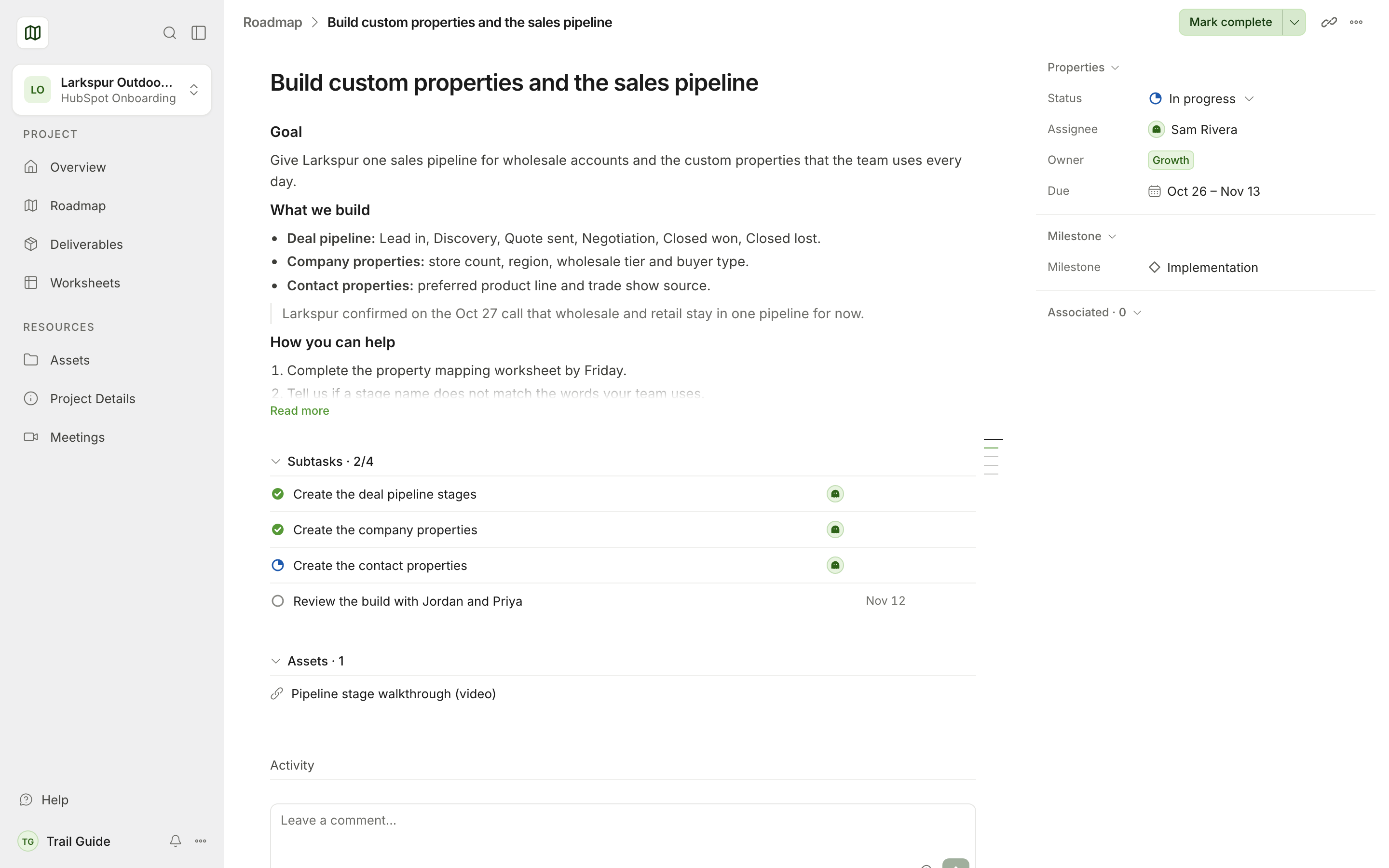
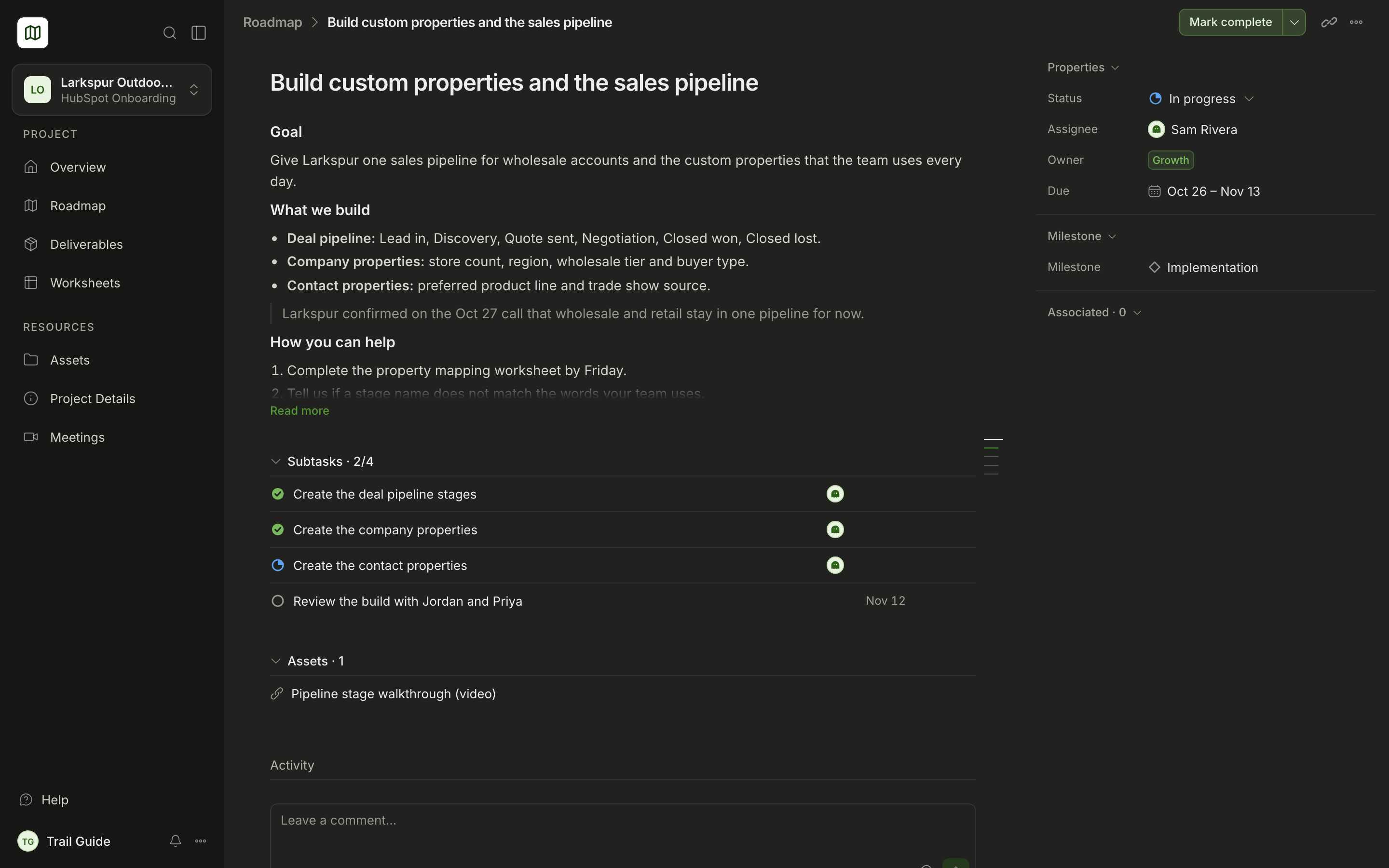
The task page shows the description and these fields: Status, Assignee, Owner and Due. It also shows the milestone, the linked deliverables and meetings, the attached assets and the Activity with its comments. Use Leave a comment to write to Growth about the task.
If a task is for your team and it has no assignee from your team, Assignee shows You.
Task statuses
| Status | Meaning |
|---|---|
| Not started | The work did not start. |
| In progress | Growth does the work now. |
| Waiting on you | You must do, examine or answer something. |
| Waiting on Growth | Growth examines the work or makes changes. |
| Complete | The work is complete. |
| Blocked | A problem stops the work. |
What you can change
You can change the status of a task. Growth sets all the other fields of a task, for example the title, the dates and the assignee.
To change the status, do one of these steps:
- When you finish the task, select Mark complete at the top of the task page.
- Open Status and select Not started, In progress, Waiting on you, Complete or Blocked.
Trail Map saves your change automatically. There is no Save button.
Sort, filter and change the layout
- Sort puts the tasks in sequence by Manual (the Growth sequence), Due date, Status or Title.
- Filters shows All, Open or Complete tasks.
- You can change the layout to List, Timeline, Month or Week. In Month and Week, use the arrows to move through the dates. Select Today to go to the current date.
The panel on the right shows the project dates, the Growth team, your team, the milestones and the total progress. To make more space, select Hide the details panel.
Sign off a milestone
When Growth asks you to sign off a milestone, a Sign off button shows on that milestone. Refer to Milestone sign-off.
Was this page helpful?