
Worksheets
Complete the tables that Growth asks for, or start your own.
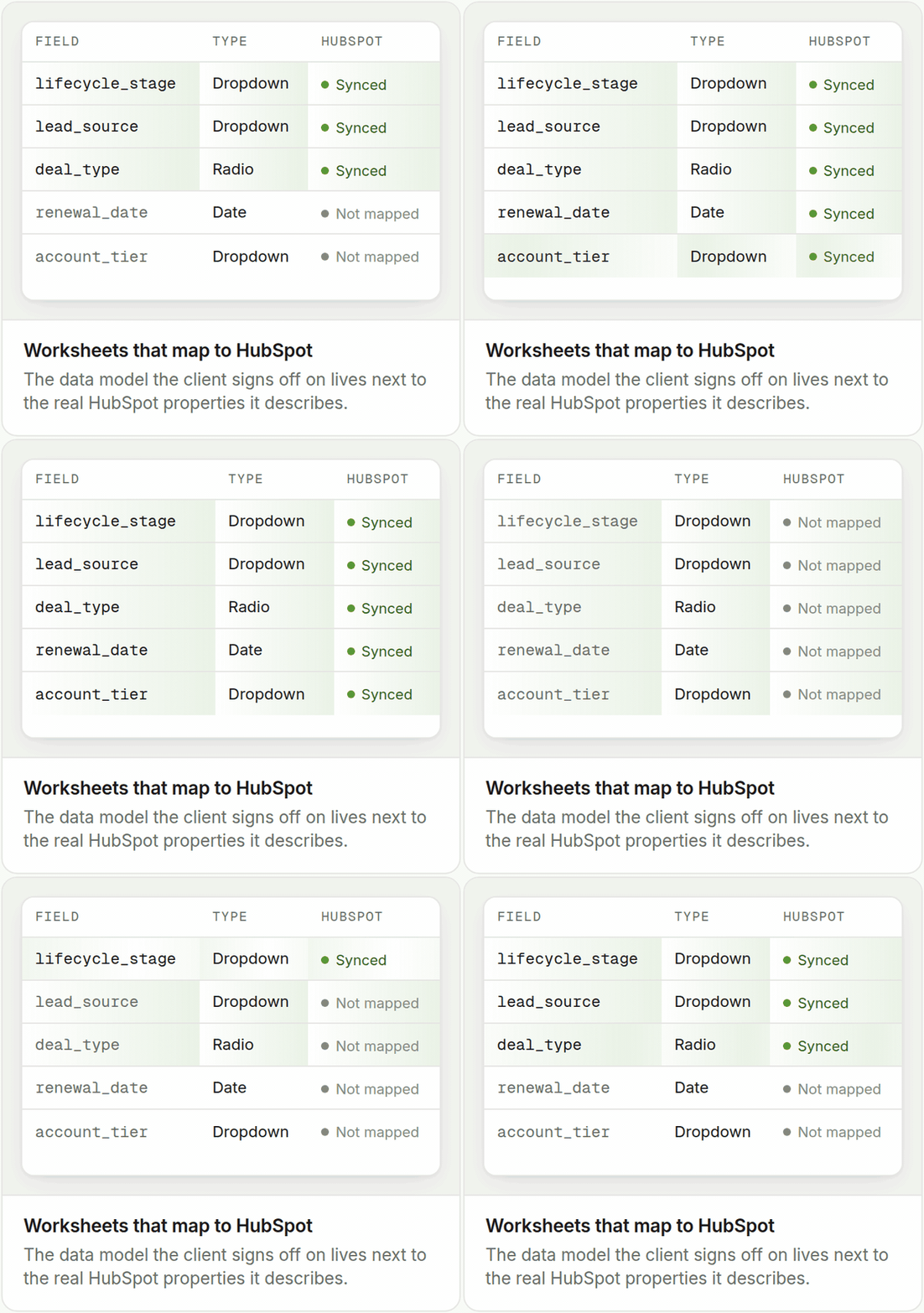
A worksheet is a table that you and Growth complete together. For example, a worksheet can show a list of properties to map, or the tools that you use. Each row is one item.
Find the rows that wait for you
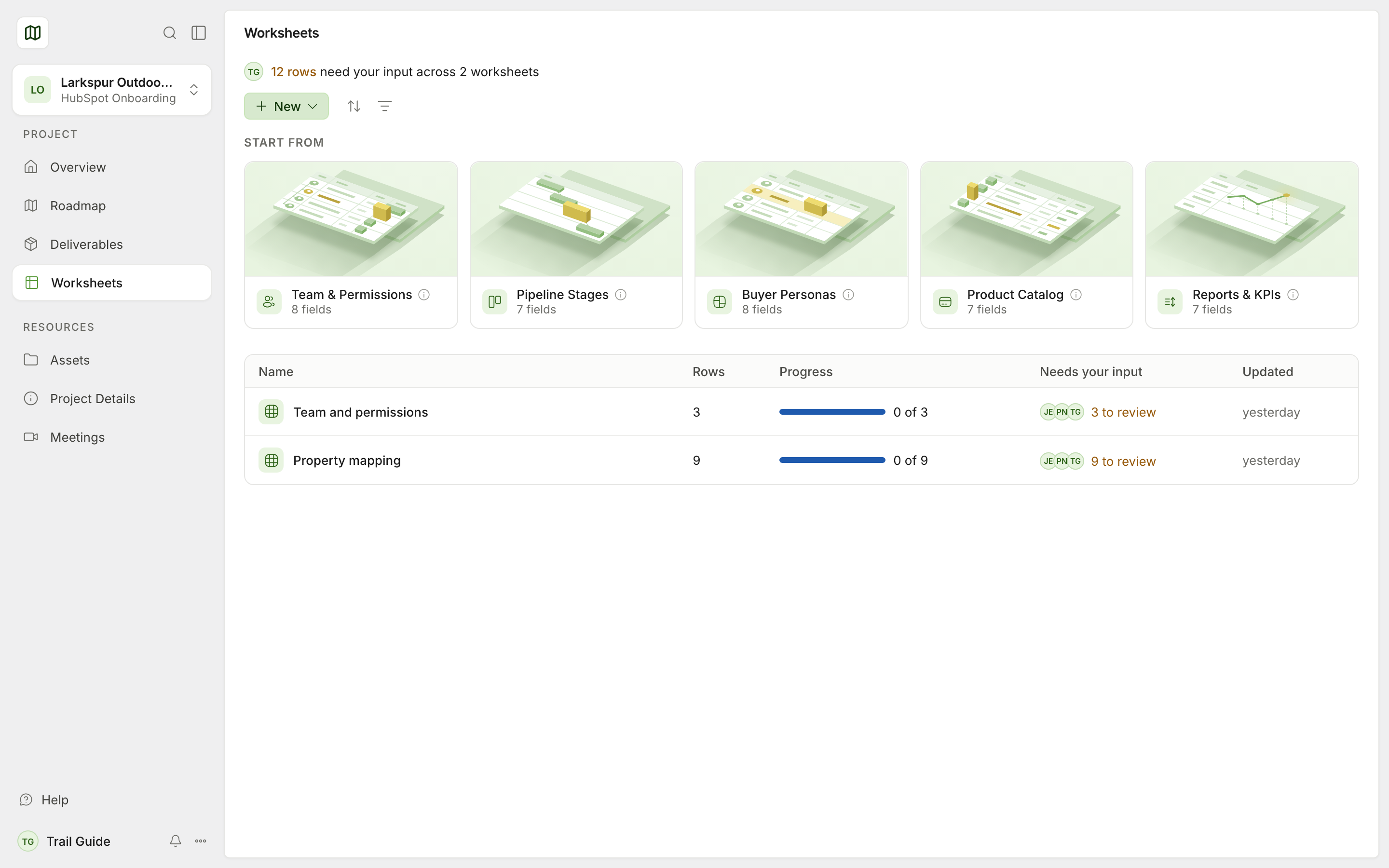
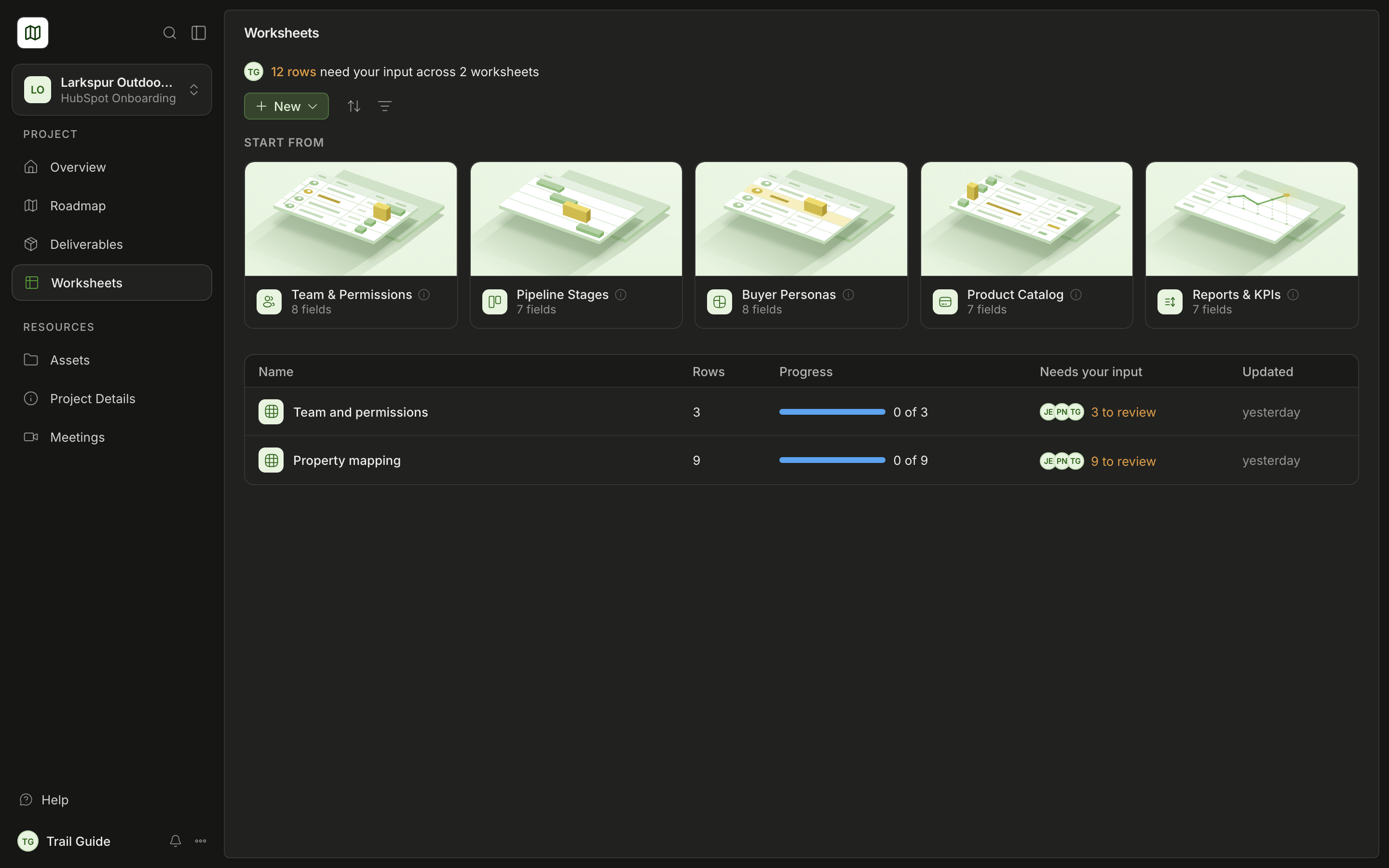
Open Worksheets in the sidebar. When rows wait for you, a line at the top shows the number. For example: "4 rows need your input across 2 worksheets".
The table shows the worksheets that Growth shares with you. For each worksheet, it shows Rows, Progress, Needs your input and the Updated date.
- Sort by Last updated or Name.
- Select Filters › Needs your input to show only the worksheets that wait for you.
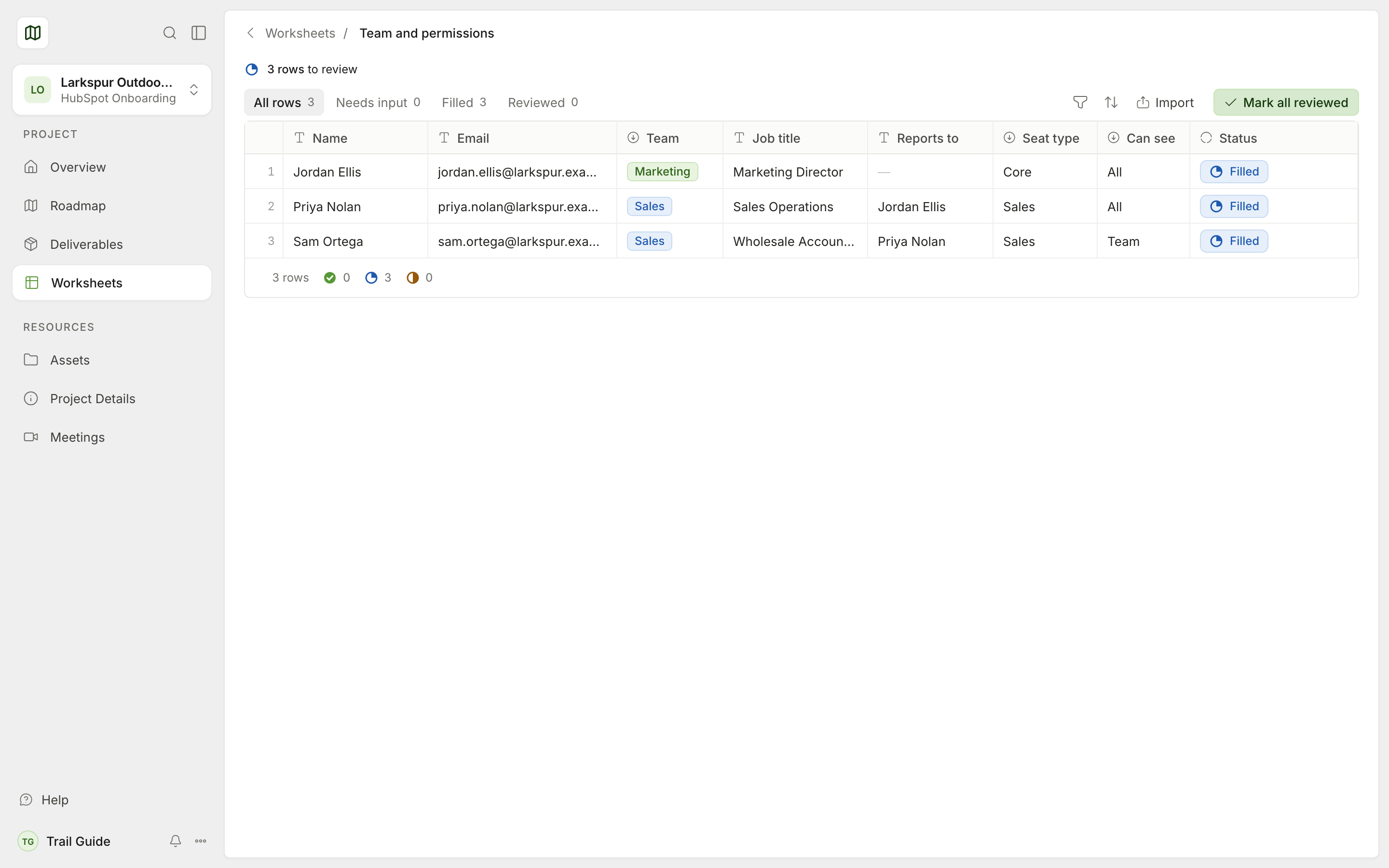
Row stages
| Stage | Meaning |
|---|---|
| Needs input | A necessary field is empty. |
| Filled | All the necessary fields have data. |
| Reviewed | A person examined the row. |
Complete a worksheet
Open a worksheet and type in its cells. Trail Map saves your changes automatically.
- To see all the fields of a row, open the row. A window shows the row status, the fields and the comments. To move through the sheet, use Previous row and Next row, or the up and down arrow keys.
- If the worksheet permits new rows, select New row to add a row.
- A field with a lock is read-only. If the full worksheet is read-only, Trail Map shows "You can't edit this sheet."
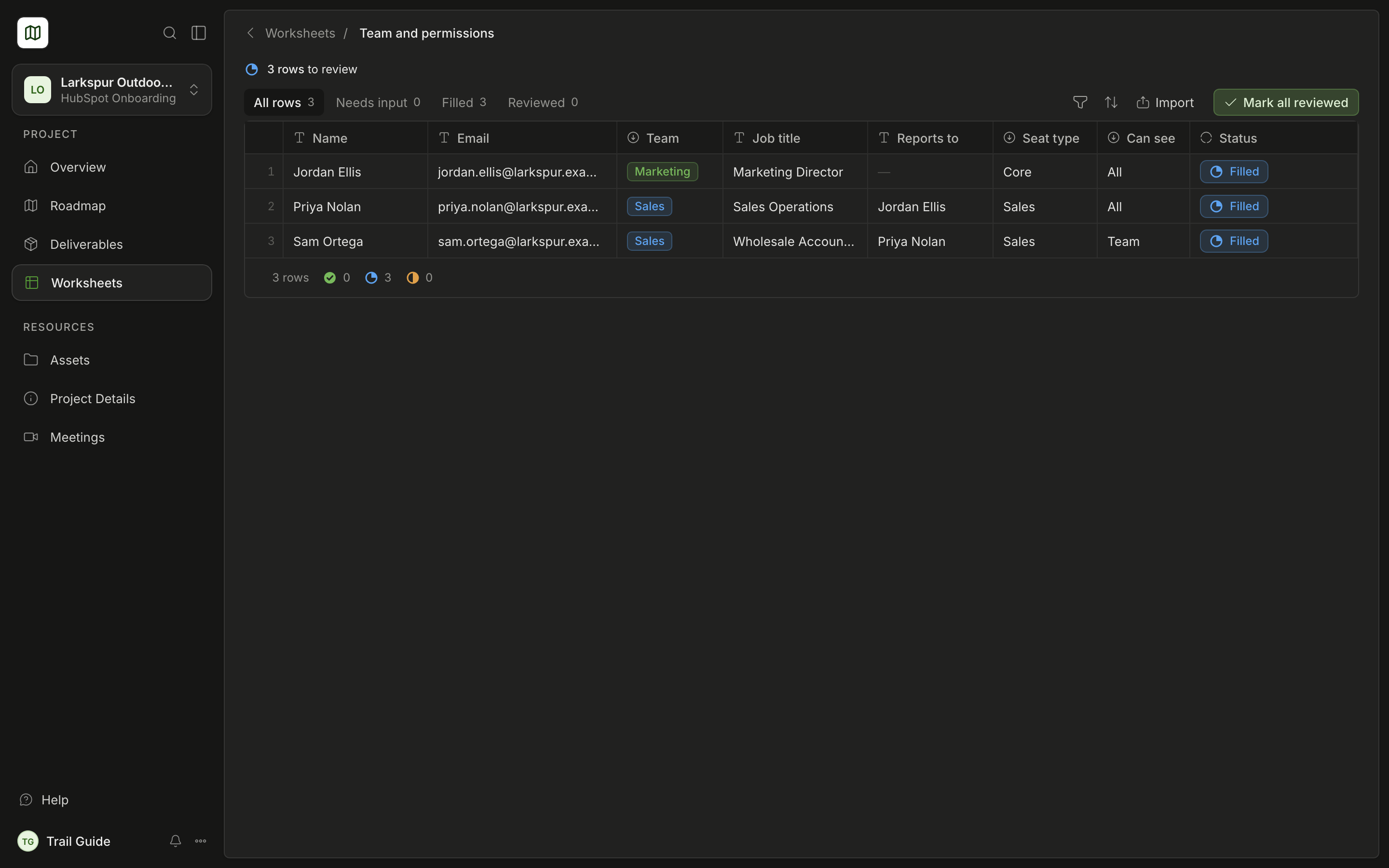
Change many cells at one time
- Set a field on many rows. Select the rows. Select Set field and then the field. Then select or type the value.
- Copy and paste. Drag across cells to select them. Press ⌘ C to copy and ⌘ V to paste. You can also paste from a spreadsheet. On Windows, use Ctrl.
- Fill down. Press ⌘ D to copy the top cell to all the selected cells below it.
- Clear. Press Delete to remove the data from the selected cells.
After each change, a message shows with Undo. If a pasted value is not correct for a field, Trail Map pastes nothing. The message tells you which cell to correct.
Comment on a row
Open a row. Use the comment box at the bottom of its window. A green number on a row shows the comments that you did not read. Refer to Comments.
Start your own worksheet
You can start a worksheet to give Growth data in a table.
- Select New, or select a card in Start from.
- Select a template: Team & Permissions, Pipeline Stages, Buyer Personas, Product Catalog or Reports & KPIs.
You can also select Blank table. To start from a CSV or Excel file, select From a file.
The new worksheet opens immediately, and Trail Map tells the Growth team.
You can have a maximum of 50 open worksheets. To start a new worksheet after that, archive a worksheet that you do not use.
Worksheet menu
The menu of each worksheet has Open and Export as CSV. For a worksheet that you started, you can also select Rename or Archive. After you archive a worksheet, Undo shows for a short time.
Was this page helpful?